Skip to content
  • Categories
  • Recent
  • Tags
  • Popular
  • Users
  • Search
Skins
  • Light
  • Brite
  • Cerulean
  • Cosmo
  • Flatly
  • Journal
  • Litera
  • Lumen
  • Lux
  • Materia
  • Minty
  • Morph
  • Pulse
  • Sandstone
  • Simplex
  • Sketchy
  • Spacelab
  • United
  • Yeti
  • Zephyr
  • Dark
  • Cyborg
  • Darkly
  • Quartz
  • Slate
  • Solar
  • Superhero
  • Vapor

  • Default (No Skin)
  • No Skin
Collapse
hyperPad

hyperPad Forum

  1. Home
  2. WIP and Showcase
  3. Pixel Art Background Tutorials

Pixel Art Background Tutorials

Scheduled Pinned Locked Moved WIP and Showcase
6 Posts 2 Posters 2.0k Views 2 Watching
  • Oldest to Newest
  • Newest to Oldest
  • Most Votes
Reply
  • Reply as topic
Log in to reply
This topic has been deleted. Only users with topic management privileges can see it.
  • TutorialDoctorT Offline
    TutorialDoctorT Offline
    TutorialDoctor
    wrote on last edited by
    #1

    Starting this topic to demonstrate how to do pixel art backgrounds. One thing that is missing from some of my pixel art is a good understanding of making backgrounds. So here is my first study. Tutorials to follow:
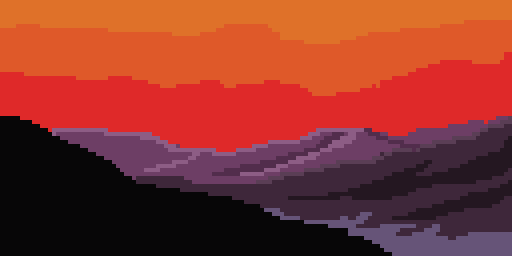
    0_1497282761295_bg_1.png

    1 Reply Last reply
    1
    • TutorialDoctorT Offline
      TutorialDoctorT Offline
      TutorialDoctor
      wrote on last edited by TutorialDoctor
      #2

      Background 2.
      I think I have a process that works consistently (and it's easy). Perhaps a tutorial is coming?
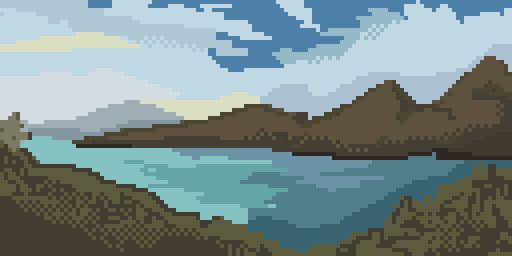
      0_1497627900931_BG 2.png

      1 Reply Last reply
      0
      • TutorialDoctorT Offline
        TutorialDoctorT Offline
        TutorialDoctor
        wrote on last edited by
        #3

        BG 3. That's all for the samples. Now for a tutorial.
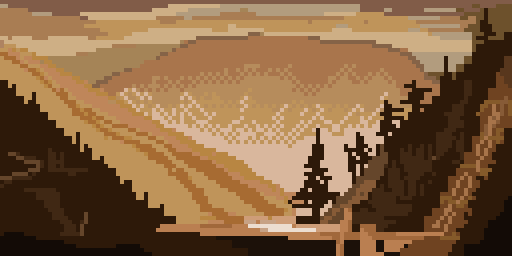
        0_1497629016683_BG 3.png

        1 Reply Last reply
        0
        • TutorialDoctorT Offline
          TutorialDoctorT Offline
          TutorialDoctor
          wrote on last edited by TutorialDoctor
          #4
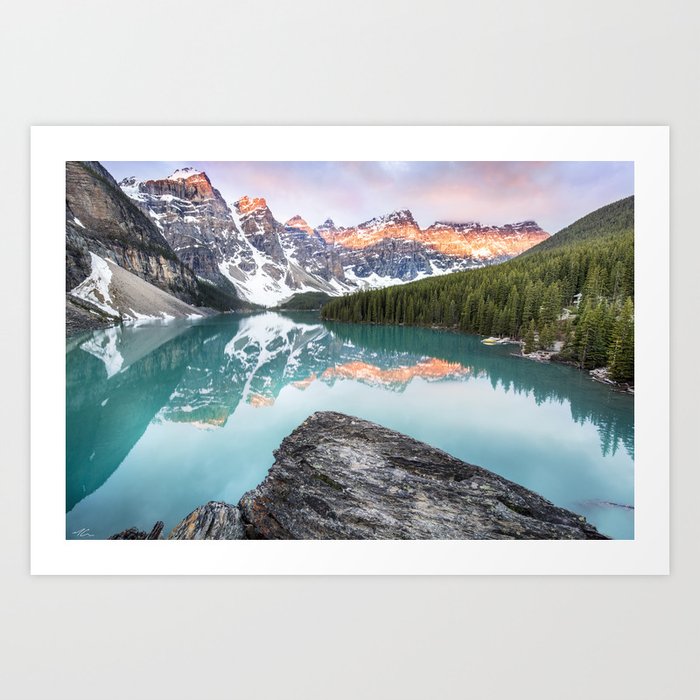
          1. Get a Photo (search: landscape): Example
          2. Change the canvas to 64x32
          3. Squint your eyes to see the main colors.
          4. Divide the canvas with the main colors using lines & shapes.
          5. Fill in the shapes with the main colors.
          6. Resize the canvas to 128x64.
          7. Divide the canvas further using more lines and Refine shapes (adding jaggies).
          8. Shade with Dithering (if needed)

          0_1497639874137_BG4.png

          Jack de WildeJ 1 Reply Last reply
          1
          • TutorialDoctorT TutorialDoctor
            1. Get a Photo (search: landscape): Example
            2. Change the canvas to 64x32
            3. Squint your eyes to see the main colors.
            4. Divide the canvas with the main colors using lines & shapes.
            5. Fill in the shapes with the main colors.
            6. Resize the canvas to 128x64.
            7. Divide the canvas further using more lines and Refine shapes (adding jaggies).
            8. Shade with Dithering (if needed)

            0_1497639874137_BG4.png

            Jack de WildeJ Offline
            Jack de WildeJ Offline
            Jack de Wilde
            wrote on last edited by Jack8680
            #5

            @TutorialDoctor interesting tutorial. I couldn't figure out how to shade stuff right and I couldn't show the detail for the trees well, but here's my attempt (original image not mine):
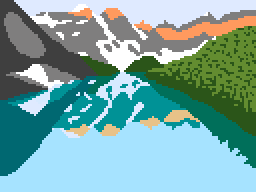
            Original
            0_1497690870676_IMG_3384.PNG

            1 Reply Last reply
            1
            • TutorialDoctorT Offline
              TutorialDoctorT Offline
              TutorialDoctor
              wrote on last edited by TutorialDoctor
              #6

              Wow. Great job. I'll add another drawing on shading (figured I should have done that). You pretty much got it though! Nice! Squint your eyes often to get the feel for the colors and make your initial colors closer to what you see when you squint.


              1 Reply Last reply
              0

              Hello! It looks like you're interested in this conversation, but you don't have an account yet.

              Getting fed up of having to scroll through the same posts each visit? When you register for an account, you'll always come back to exactly where you were before, and choose to be notified of new replies (either via email, or push notification). You'll also be able to save bookmarks and upvote posts to show your appreciation to other community members.

              With your input, this post could be even better 💗

              Register Login
              Reply
              • Reply as topic
              Log in to reply
              • Oldest to Newest
              • Newest to Oldest
              • Most Votes


              • Login

              • Login or register to search.
              • First post
                Last post
              0
              • Categories
              • Recent
              • Tags
              • Popular
              • Users
              • Search